Blog
How to Add, Change or Remove a Payment Method
Your EVmode account keeps a prepaid balance, and the card on file tops it up when it runs low. Here is how to add a card, change which card is used, and remove one, in the app or on the website.
How your card is charged
- When you add a card and your balance is $5.00 or more, nothing is charged right away.
- When your balance is $4.99 or less, the card is charged $20.00 to top up your balance.
- After that, the card is charged $20.00 automatically whenever your balance drops below $5.00.
- The card you added most recently becomes your default card for these top-ups.
Card details go straight to our payment partner, Stripe. EVmode does not store or process your card number.
Add a card in the EVmode app
- Sign in to the app and tap the menu button at the top left.
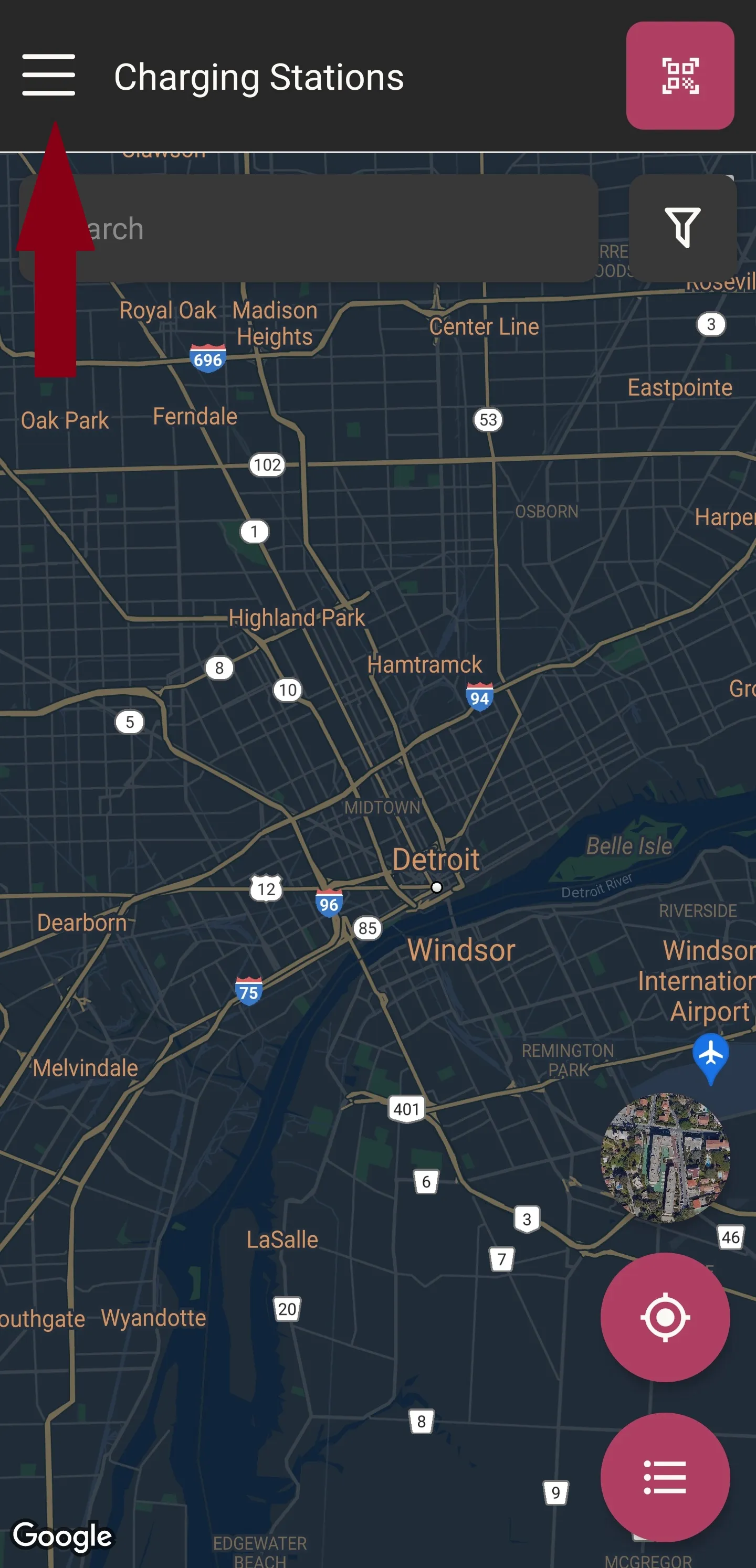
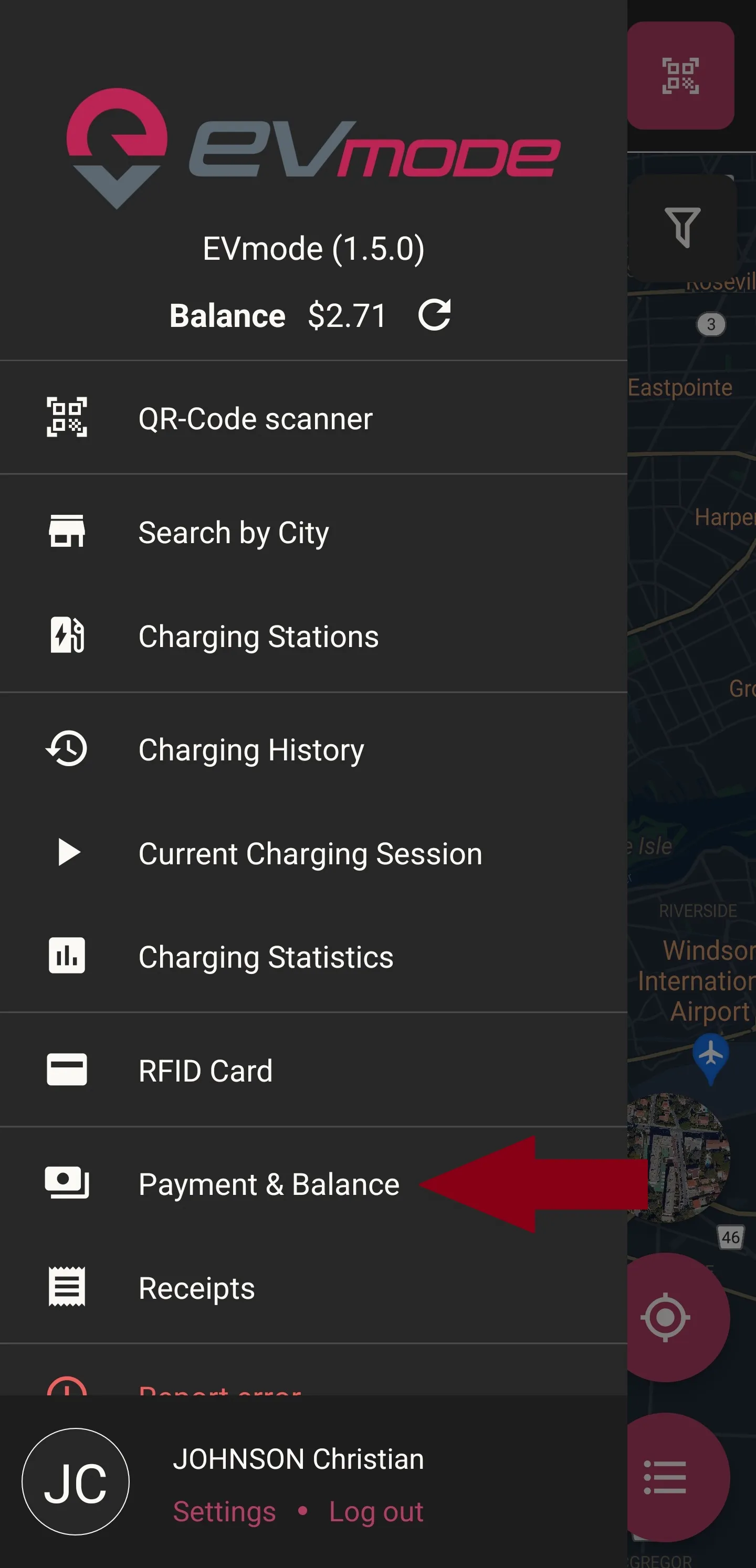
- Tap Payment & Balance.
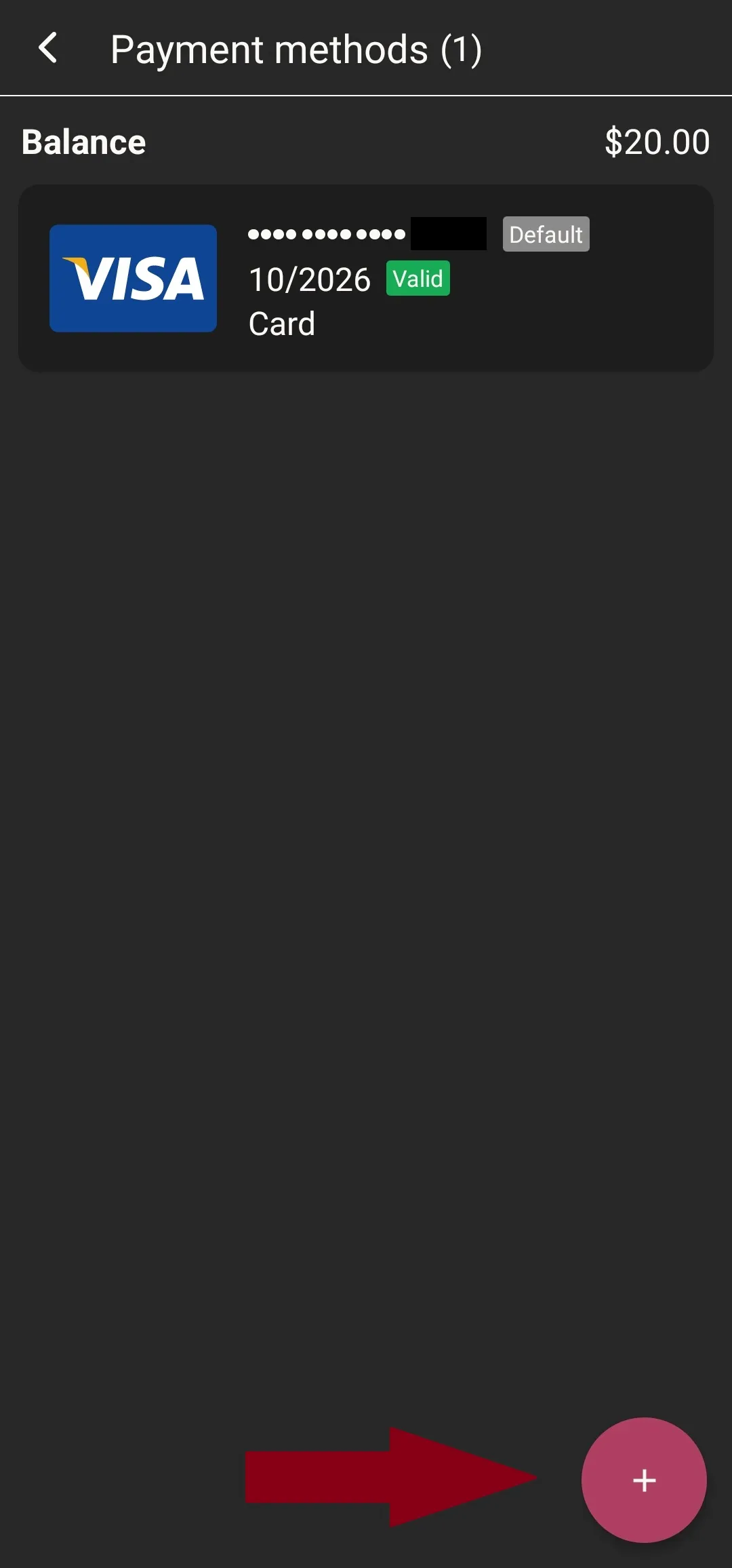
- Tap the + button at the bottom right.
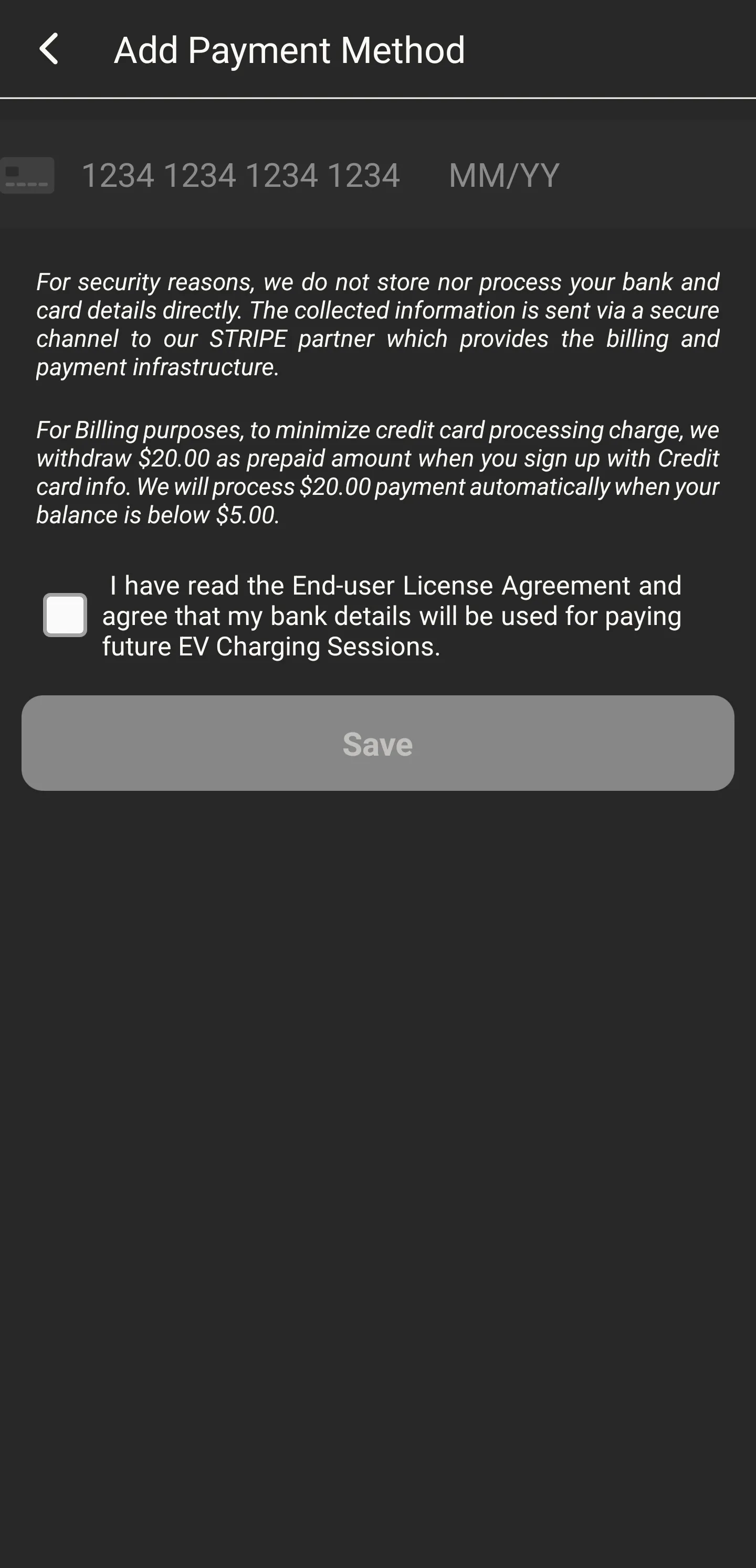
- Enter your card number and expiration date, check the box to accept the End-user License Agreement, and tap Save.
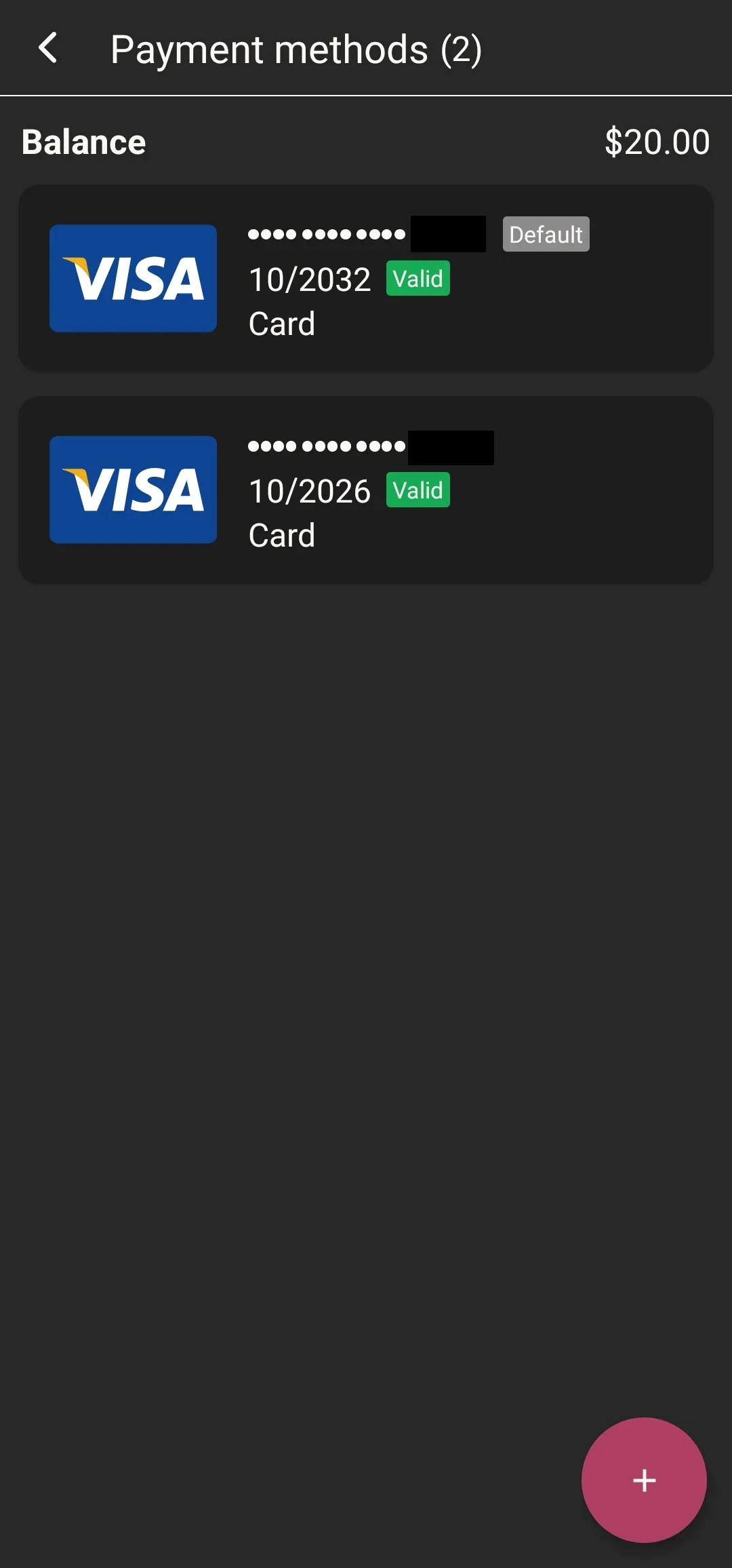
- Your new card appears in the list and is marked Default.
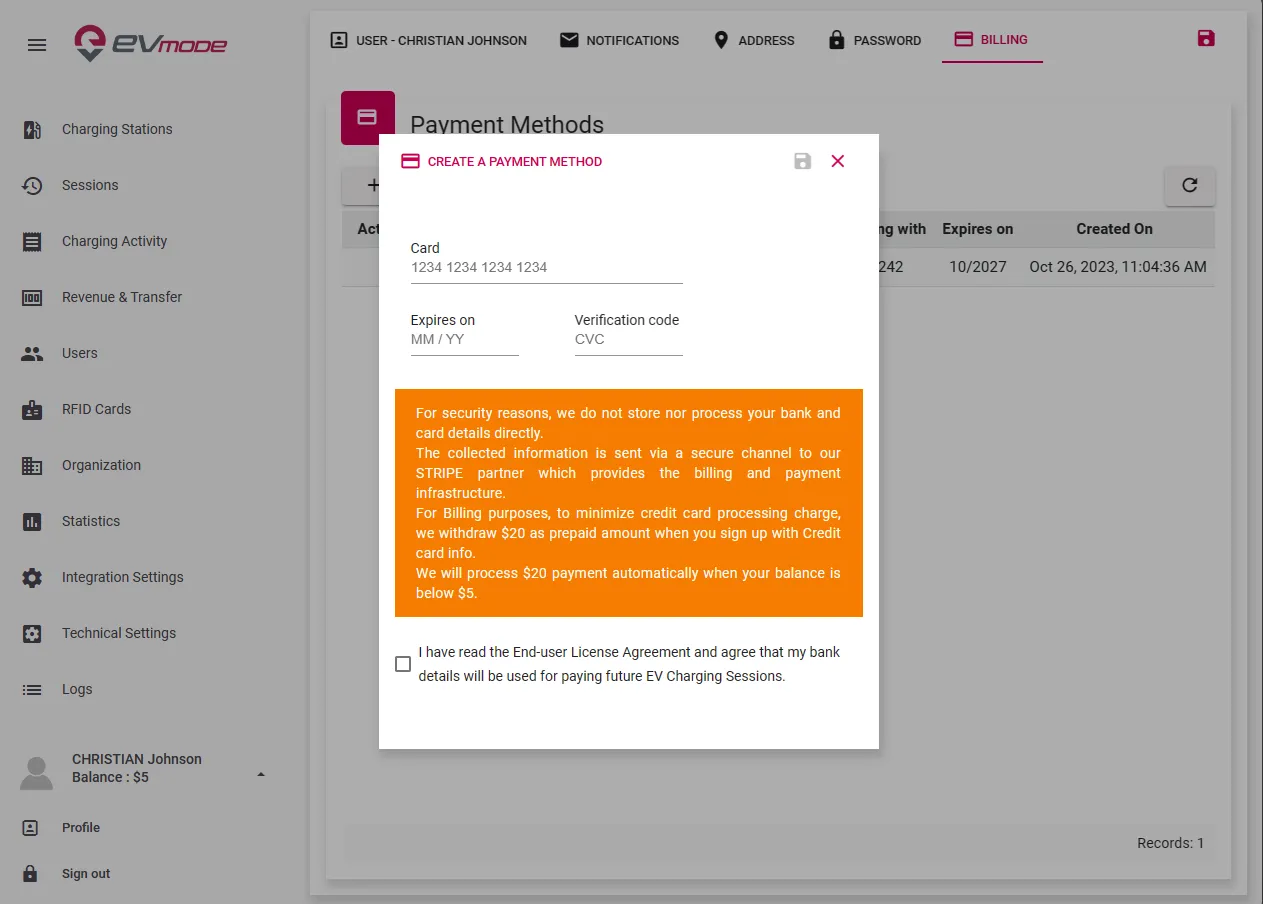
Add a card on the website
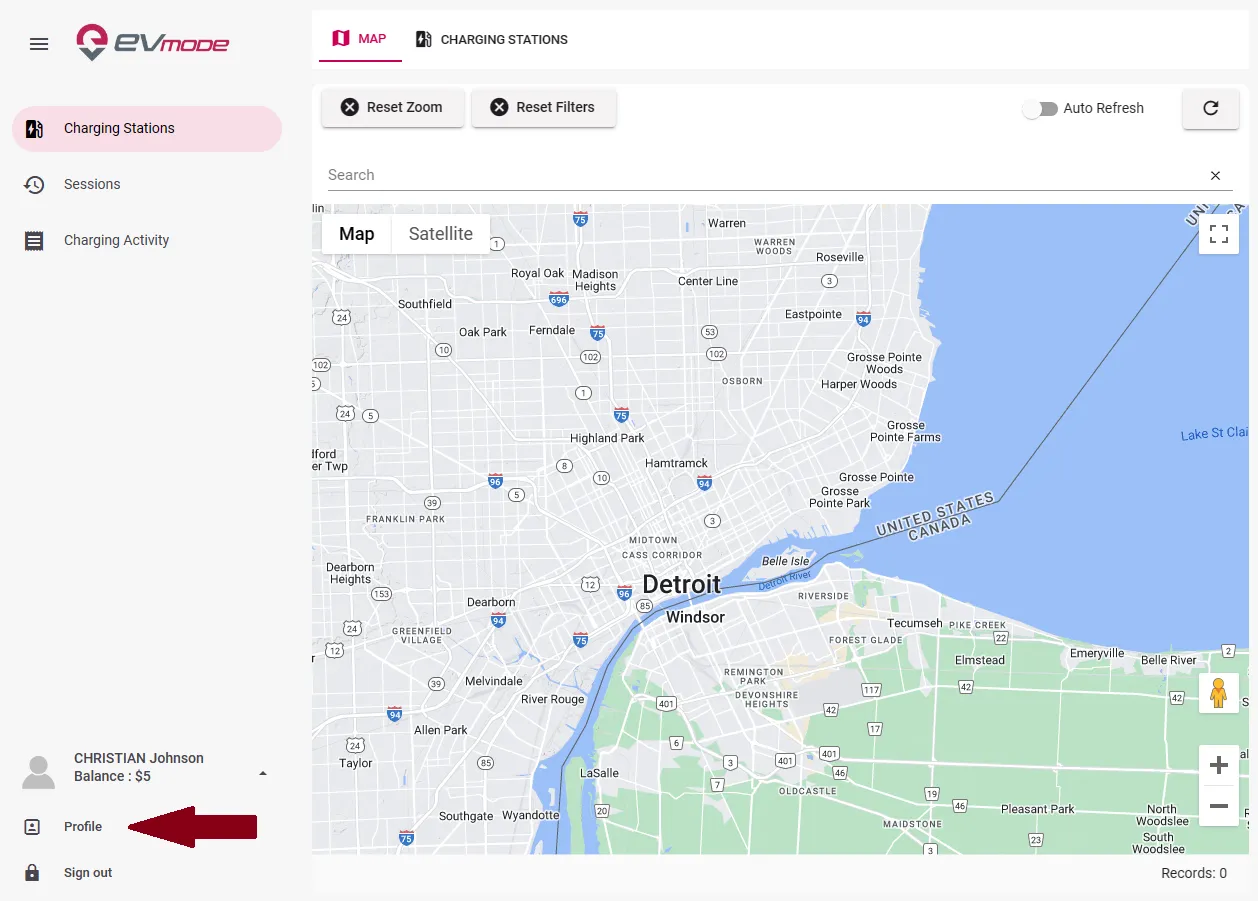
- Sign in to your EVmode account in a web browser. Open the menu at the top left, or click your name at the bottom left.
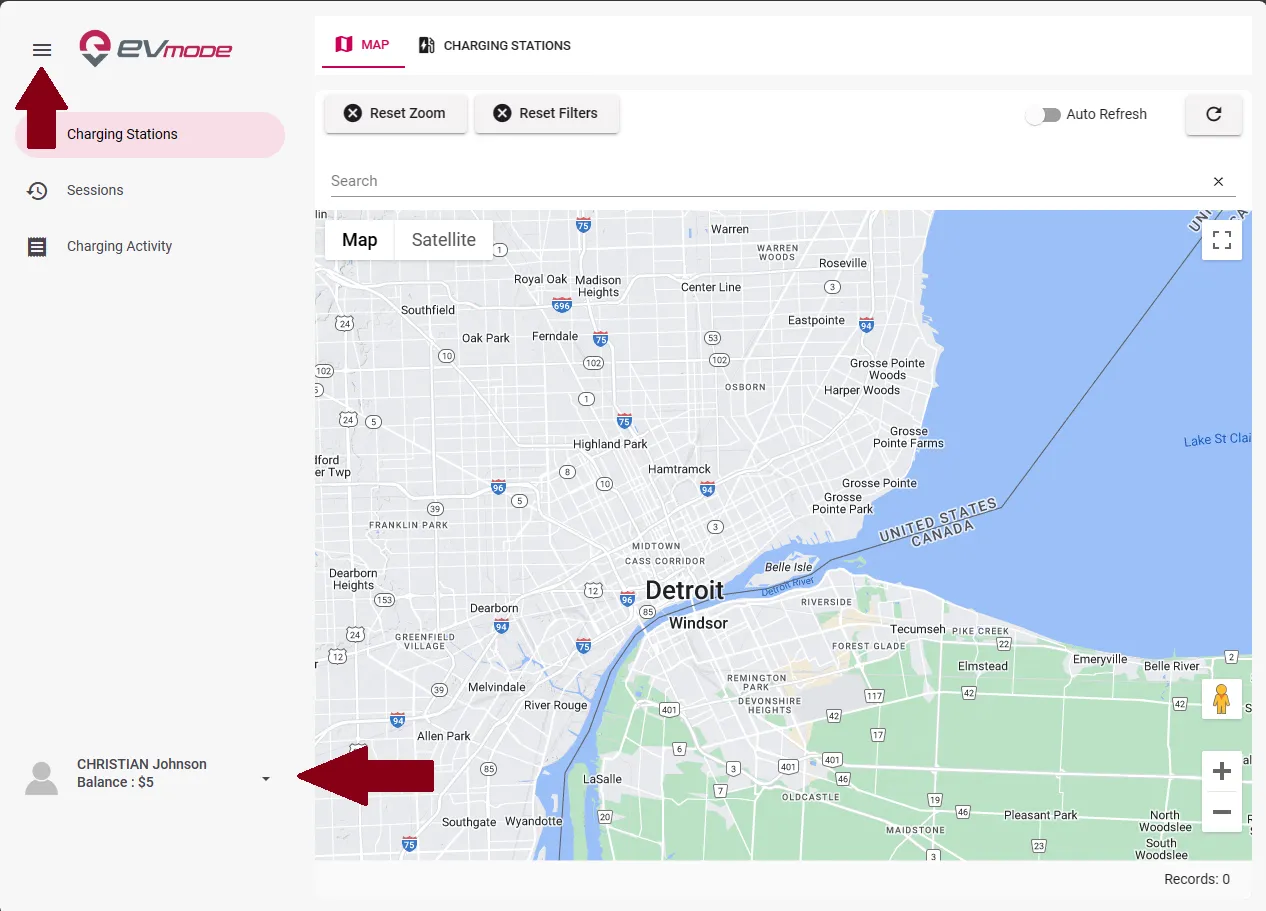
- Click Profile.
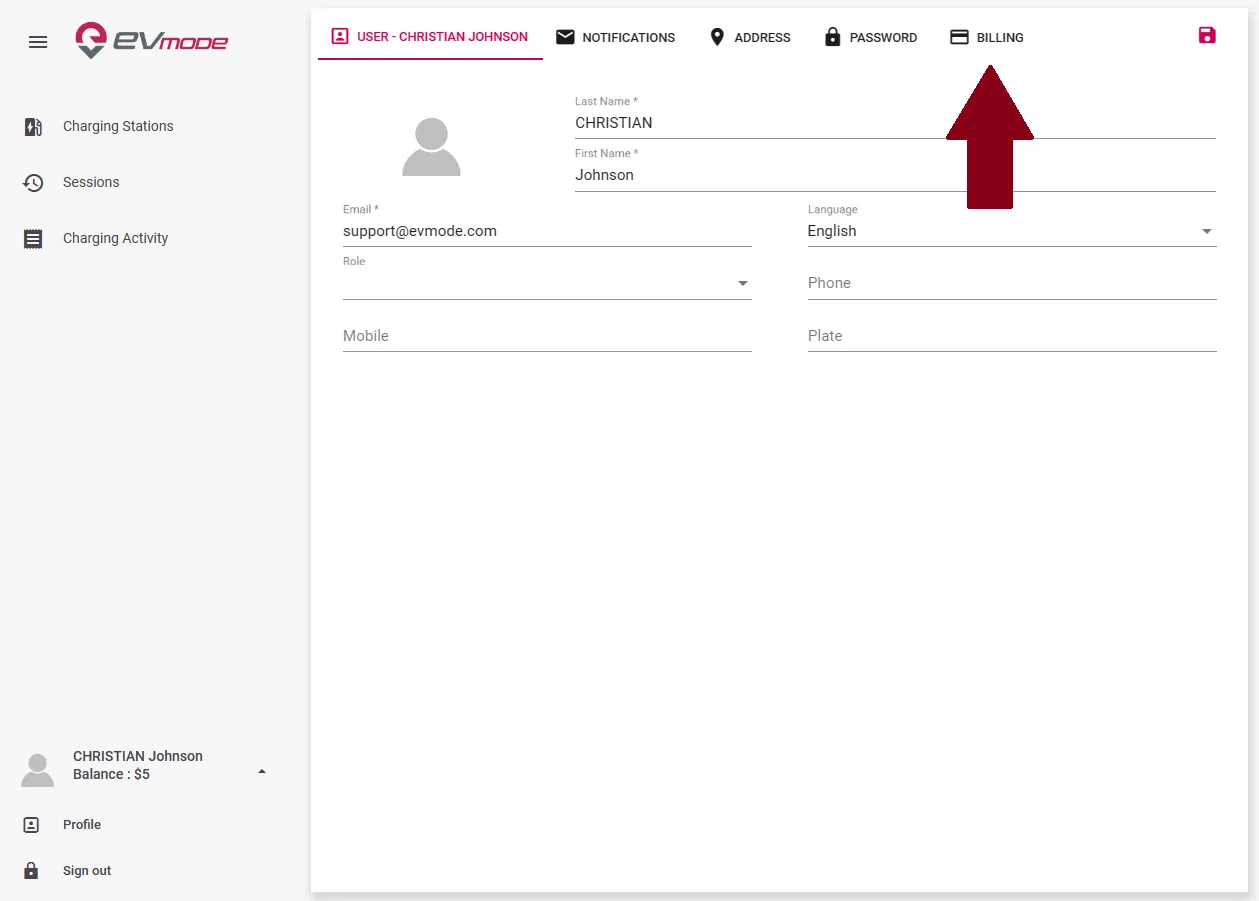
- Open the Billing tab.
- Click + Add.
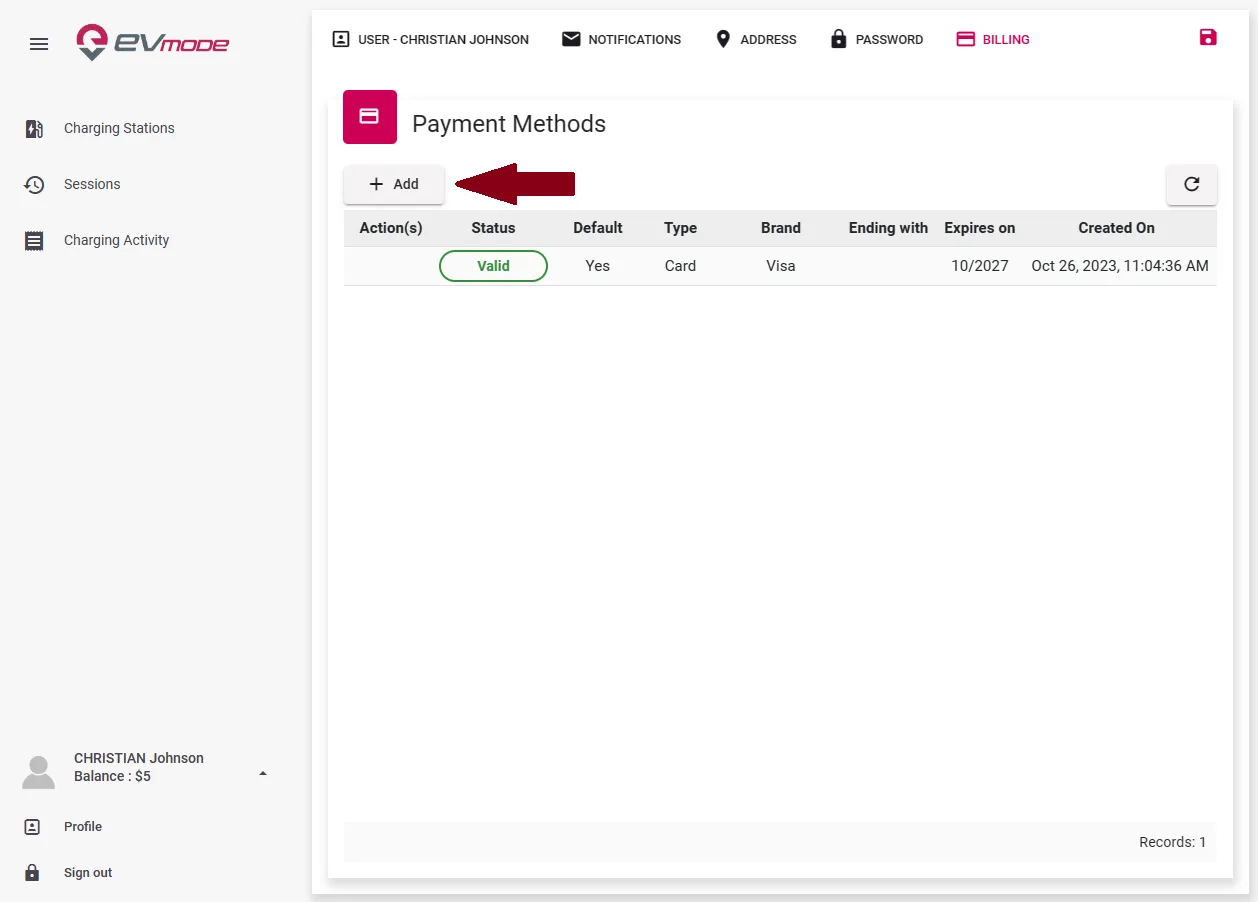
- Enter your card number, expiration date and security code, check the box to accept the End-user License Agreement, and click Save.
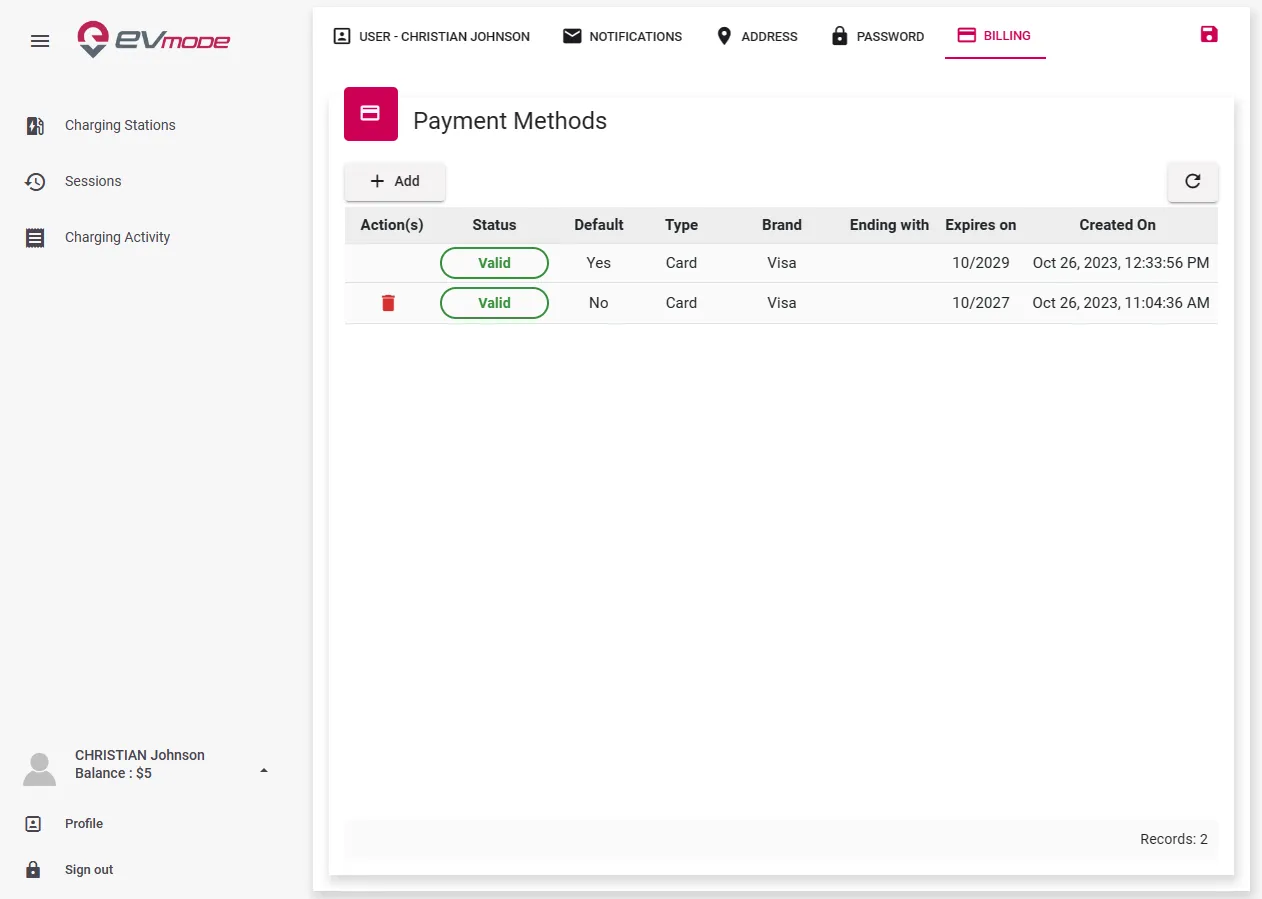
- Your new card appears in the list as the default card.
Change your default card
You can’t pick a different default card directly. Add the card you want to use, and as the most recently added card it becomes the default. You can then remove the old card.
Remove a card on the website
- Go to Profile and open the Billing tab, as described above.
- Click the trash icon next to the card you want to remove.
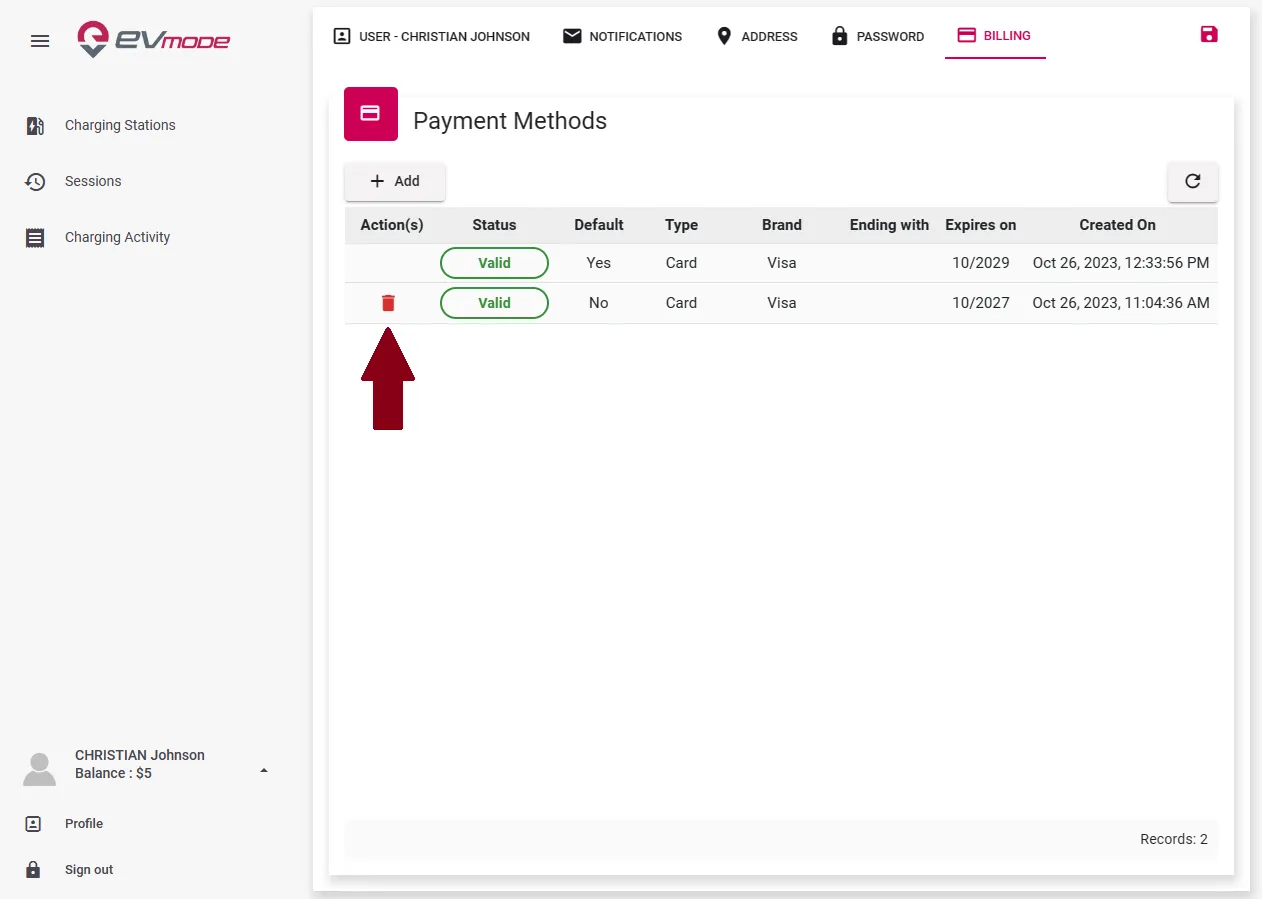
- Click Yes to confirm.
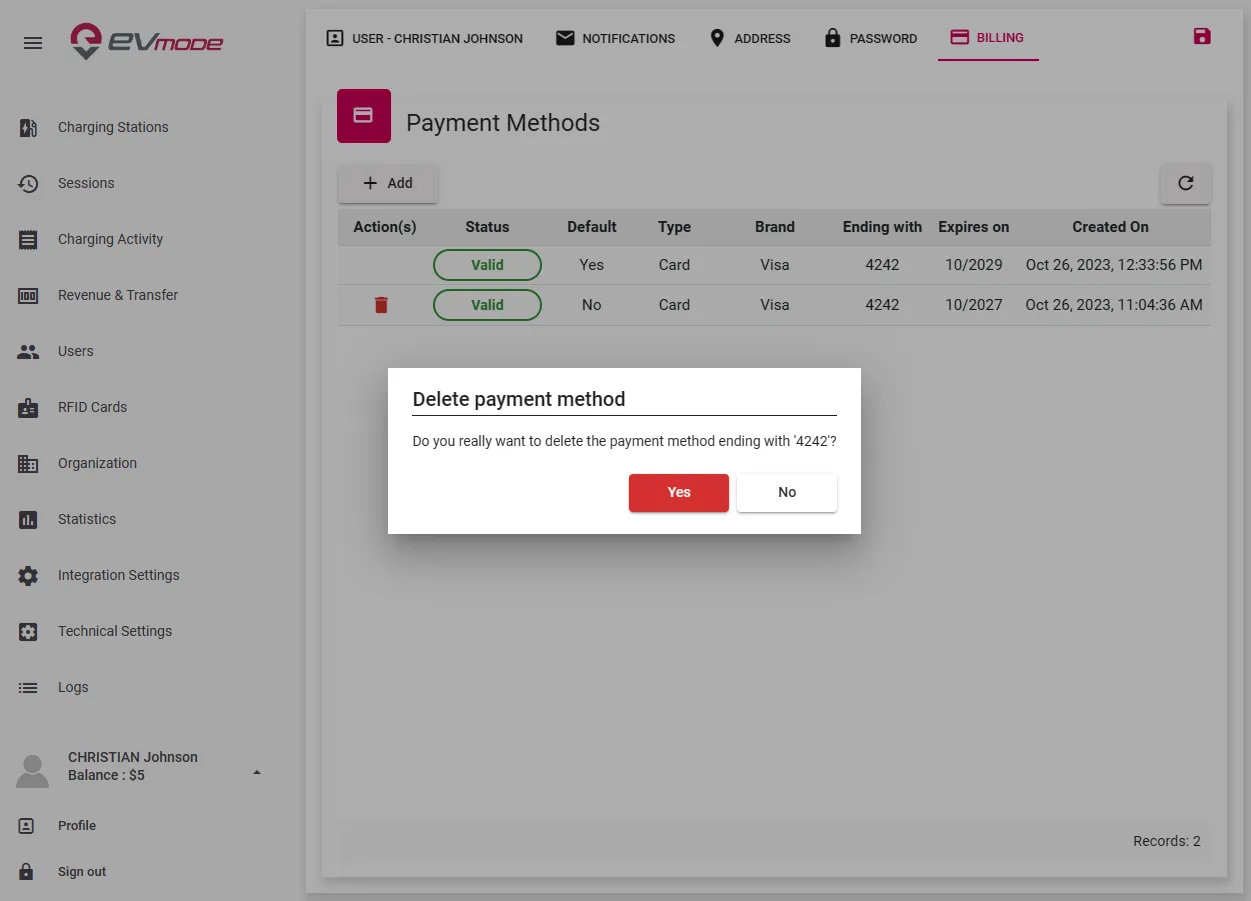
The default card can’t be removed this way. To remove every card, including the default one, contact us through the EVmode support center.